PosterCutter Blog
Digital Citizenship Week 2026: 7 Low-Prep Activities That Teach Students to Think Before They Click
Digital Citizenship Week is October 19–23, 2026. Use these seven practical classroom activities to help elementary and middle-grade students question online information, protect personal details, recognize digital footprints, communicate responsibly, and think critically about AI-generated content—without turning the week into five days of lectures.
Digital Citizenship Week 2026: 7 Low-Prep Activities That Teach Students to Think Before They Click
Digital citizenship lessons used to be fairly easy to summarize:
Protect your password.
Be kind online.
Do not share private information.
Those ideas still matter.
But students now encounter recommendation algorithms, short-form videos, sponsored content, edited images, search summaries, chatbots, and AI-generated information alongside ordinary websites.
That means digital citizenship increasingly needs to include something else: critical thinking.
Students need to learn how to pause before believing, sharing, replying, downloading, or entering personal information.
Digital Citizenship Week takes place October 19–23, 2026, making this a useful time to introduce those habits.
The good news is that teachers do not need five complicated technology lessons. Some of the strongest activities can begin with printed cards, pencils, classroom discussion, and carefully selected examples.
Here are seven low-prep activities you can use during Digital Citizenship Week or throughout the school year.
1. Play “Share, Check, or Stop?”
Start with situations instead of definitions.
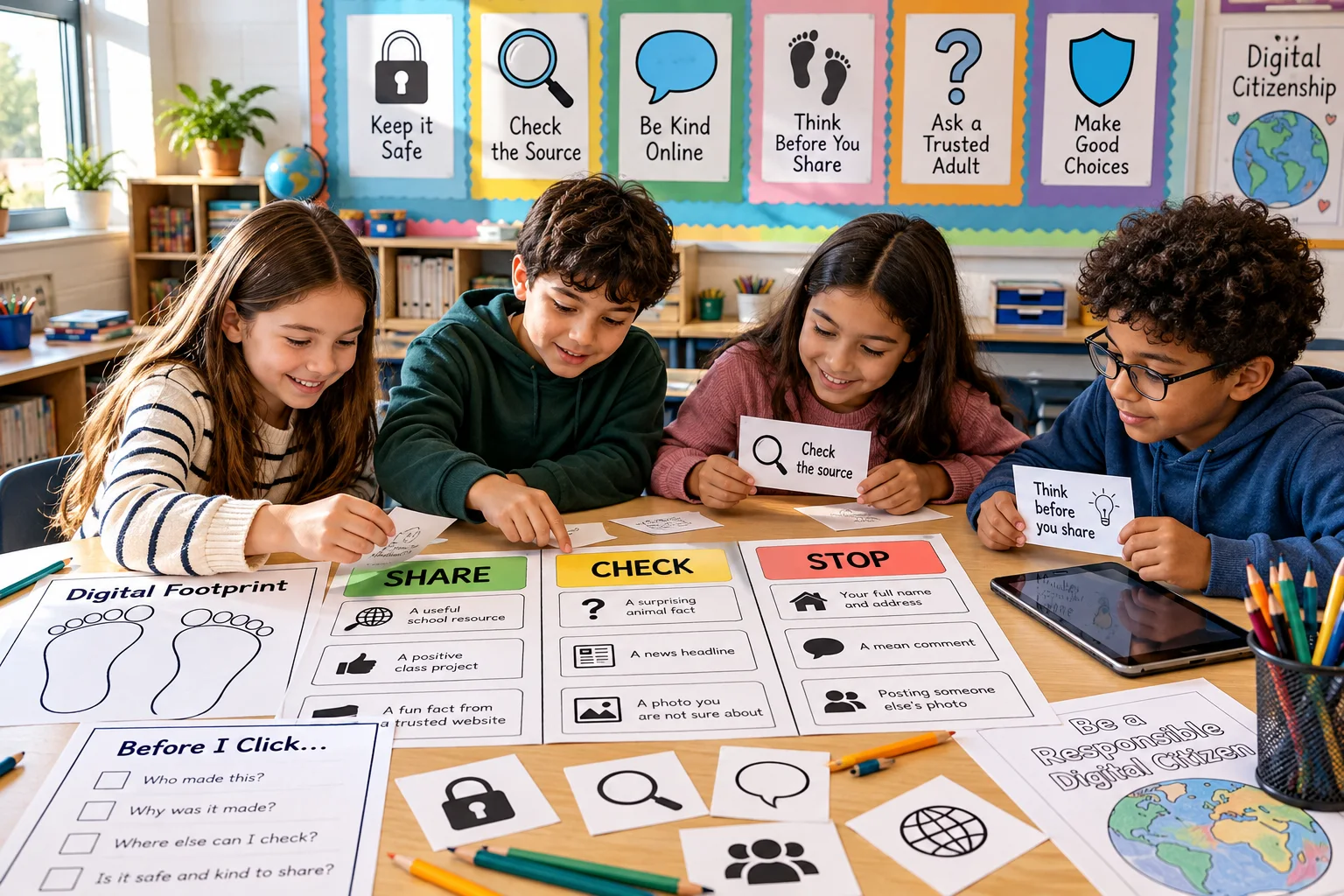
Prepare cards containing short online scenarios. Students read each card and decide whether they would:
SHARE — The information seems appropriate and there is a good reason to share it.
CHECK — Something needs to be verified first.
STOP — Sharing could be unsafe, unkind, or inappropriate.
For example:
“You find a surprising animal fact and want to include it in your science project.”
Students should probably choose CHECK.
Another example:
“A game asks you to post your full name, school, and home address to enter a competition.”
That belongs under STOP.
Another:
“Your teacher gives you a museum website and asks you to share one fact with your group.”
That may belong under SHARE.
The important part is not simply getting the answer right. Ask students:
What information helped you make that decision?
What would you need to know before deciding?
Could the answer change depending on the situation?
That moves the activity from memorizing internet rules to practicing judgment.
Make it printable
Create three large signs:
SHARE
CHECK
STOP
Place them around the classroom and let students move to their answer.
For a quieter version, give each student three small response cards that they can hold up.
2. Teach a Three-Question Source Check
Students do not need to become professional fact-checkers before they can learn to slow down.
Give them three questions they can remember.
Who made this?
Is there an identifiable:
Author?
Organization?
Company?
School?
Museum?
Government agency?
News organization?
Why was it made?
Was the purpose to:
Inform?
Entertain?
Persuade?
Sell?
Get attention?
Make people react emotionally?
Where else can I check it?
Can students find the same information somewhere independent of the original source?
This works well when you compare two pieces of content about the same topic.
For example, compare:
A museum page.
A social media screenshot.
A news article.
A dramatic anonymous post.
The goal is not to teach students that one type of source is always correct. The goal is to teach them that the source, purpose, and supporting evidence matter.
Turn it into a classroom poster
Create a large poster with three questions:
WHO MADE IT?
WHY WAS IT MADE?
WHERE ELSE CAN I CHECK?
Keep it visible throughout the school year.
If you create the poster as one large image, you can divide it into printable student sections using the PosterCutter Collaborative Poster Maker.
Students can each color one section and then assemble the final classroom display.
3. Try a “Real, Edited, or Generated?” Discussion
Students are increasingly likely to encounter photographs and graphics that have been:
Cropped.
Filtered.
Edited.
Staged.
Manipulated.
AI-generated.
Instead of turning the activity into a guessing competition, focus on reasoning.
Show several teacher-selected examples and ask:
What do you notice?
What makes you uncertain?
What would you want to check?
Where could you find the original source?
Would knowing how this image was created change how you use it?
This last question is especially useful.
An image can look convincing and still need verification.
Students may notice strange details and say something like: “The hands look weird, so it must be AI.”
That can be a reason to investigate. But it should not be taught as proof.
When the origin of an image matters, investigate the source instead of relying only on appearance.
Simple printable worksheet
Create four columns:
Example
What I notice
What I need to check
How I could verify it
Students can complete the sheet in pairs.
That makes the activity about evidence rather than simply trying to “catch” AI images.
4. Create a Digital Footprint Trail
The phrase “digital footprint” can feel abstract to younger students.
Make it physical.
Cut out paper footprints and write one online action on each footprint.
Examples:
Liking a video.
Posting a photograph.
Commenting on a game.
Creating an account.
Searching for something.
Uploading artwork.
Joining an online group.
Submitting homework.
Sharing a username.
Downloading an app.
Place the footprints across the floor or wall.
Students walk through the trail and discuss which actions may leave information behind.
Then introduce an important idea:
Not every digital footprint is automatically bad.
Submitting homework online creates information. Publishing a thoughtful school project also creates information.
The goal is to understand that online actions can leave records and that students should make deliberate choices.
Reflection activity
Give students a blank paper footprint.
On the front, ask:
“What is one thing you would be comfortable leaving in your digital footprint?”
On the back:
“What is one thing you would prefer to keep private?”
Younger children can draw instead of writing.
5. Build a Personal Information Sorting Game
“Never share personal information” sounds simple until students have to decide what actually counts as personal information.
Prepare cards containing examples such as:
First name.
Favorite animal.
Home address.
Password.
School name.
Favorite book.
Phone number.
Favorite color.
Live location.
Parent’s phone number.
Photograph.
Gaming username.
Ask students to sort them into three categories:
USUALLY OKAY IN THE RIGHT CONTEXT
ASK A TRUSTED ADULT FIRST
KEEP PRIVATE
The phrase “in the right context” matters.
A teacher may legitimately need a student’s name. A parent may need to enter an address when buying something online. A school portal may require information students should never post publicly.
Digital safety is not just memorizing a list.
Students should learn to think about:
Who is asking?
Why do they need it?
Where will the information go?
Who can see it?
Change the context
Scenario 1: “Your teacher asks you to write your first name on your worksheet.”
Scenario 2: “A stranger in an online game asks for your full name.”
The category of information is similar. The situation is completely different.
That is where the useful learning happens.
6. Use a Digital Citizenship Word Search as the Warm-Up, Not the Whole Lesson
Word searches can be useful.
But they should not carry the entire learning objective.
Use one for five minutes at the beginning of class to introduce vocabulary.
Suggested words:
PRIVACY
SOURCE
PASSWORD
RESPECT
VERIFY
SEARCH
MESSAGE
FOOTPRINT
PERMISSION
REPORT
TRUSTED
INFORMATION
Once students finish, choose four words and discuss them.
What does verify mean?
What makes someone a trusted adult?
How is privacy different from secrecy?
What could be part of your digital footprint?
Now the word search has become a vocabulary starter instead of filler.
Teachers can create a puzzle using the exact vocabulary they are teaching with the PosterCutter Word Search Maker.
For younger learners, use fewer words and a smaller grid. For older students, include more difficult vocabulary and follow the puzzle with discussion questions.
7. Finish With a “Before I Click” Classroom Pledge
Instead of giving students another list of rules, let them help create one.
Write this sentence on the board:
“Before I click, post, share, or reply, I can…”
Let students suggest endings.
Check who made it.
Think before sharing.
Keep passwords private.
Ask an adult when something feels wrong.
Check another source.
Think about how my message could make someone feel.
Ask permission before sharing someone else’s picture.
Stop when a website asks for private information.
Check whether a surprising claim is actually true.
Collect the strongest suggestions and turn them into one classroom pledge.
Then let each student illustrate one rule and combine the pieces into a large bulletin-board display.
A Simple Five-Day Digital Citizenship Week Plan
Monday
Focus: Pause before acting
Activity: Share, Check, or Stop?
Tuesday
Focus: Media literacy
Activity: Three-question source check
Wednesday
Focus: Images and AI
Activity: Real, Edited, or Generated? discussion
Thursday
Focus: Privacy
Activity: Digital footprint trail and personal-information sorting
Friday
Focus: Responsible choices
Activity: Before I Click classroom pledge
Each activity can be completed in roughly 15–25 minutes or expanded into a longer lesson.
What Makes a Good Digital Citizenship Printable?
Digital citizenship is an area where attractive worksheets can easily become too simplistic.
A good resource should ask students to:
Decide.
Explain.
Compare.
Question.
Reflect.
Instead of:
“Circle the safe password.”
Try:
“Which password is safer, and what makes it stronger?”
Instead of:
“Color the good digital citizen.”
Try:
“Two students disagree about whether they should repost something. What should they check before deciding?”
Good digital citizenship printables leave room for context.
Useful printable formats
Scenario cards.
Sorting activities.
Source-checking checklists.
Reflection worksheets.
Vocabulary activities.
Discussion cards.
Collaborative posters.
Exit tickets.
Family conversation sheets.
Check printable image quality too
If you are creating black-and-white posters, cards, classroom graphics, or coloring-based activities, make sure the artwork is large enough for print.
A graphic that looks fine on a laptop may become blurry when stretched across an 8.5 × 11 inch page.
For low-resolution classroom graphics, you can prepare the artwork using the PosterCutter Printable Image Upscaler.
Always inspect the final PDF at 100% zoom and test-print at least one page.
Teacher-Seller Idea: Build a Digital Citizenship Mini-Bundle
Digital Citizenship Week also gives teacher-authors a useful October resource idea.
Instead of making twenty unrelated worksheets, build one compact classroom sequence.
Pages 1–6: Share, Check, or Stop scenario cards
Pages 7–9: Source-checking worksheets
Pages 10–11: Digital footprint activity
Pages 12–14: Personal-information sorting cards
Page 15: Digital citizenship word search
Page 16: Answer key
Pages 17–20: Collaborative classroom pledge poster
Page 21: Exit ticket
Page 22: Family conversation sheet
That gives teachers an actual mini-unit instead of a pile of loosely connected worksheets.
Make marketplace listings clear
If you sell teaching resources on Teachers Pay Teachers, Eduki, Tes Resources, Etsy, or another marketplace, clearly explain:
Recommended grade range.
Skills covered.
Number of pages.
File format.
Whether the resource is editable.
Whether answer keys are included.
Whether pages are color or black-and-white.
Whether US Letter and A4 versions are included.
What preparation the teacher needs to do.
Do not describe a resource as a complete “internet safety unit” if it is really just a coloring page with an internet-safety slogan.
The educational activity should match the claim.
Don't Make Digital Citizenship a One-Week Topic
Digital Citizenship Week gives schools a useful reason to focus on online behavior.
But the stronger classroom habit is much smaller:
PAUSE
QUESTION
CHECK
DECIDE
Use that routine when students research a science topic.
Use it when they see a surprising image.
Use it when they cite a website.
Use it when an AI tool gives them an answer.
Use it before they repost something.
Use it before entering information into a website.
Digital citizenship becomes much more meaningful when students see it as part of ordinary learning instead of an internet-safety lesson that happens once per year.
Conclusion
Digital Citizenship Week does not require an elaborate technology project.
A few scenario cards, paper footprints, sorting activities, source-checking questions, and one collaborative poster can create useful classroom conversations.
The most important skill is not simply teaching students what they should never click.
It is teaching them what to do before they believe, share, or act on what they see.
If you are creating your own classroom printables, PosterCutter can help with specific production tasks such as preparing printable artwork, creating vocabulary puzzles, or splitting collaborative posters.
Browse PosterCutter Explore for more classroom printable ideas.